Technology / 24 min read · English
Best Productivity & Note-Taking Apps Compared: Notion vs Obsidian vs Trello vs OneNote vs Google Keep
Notion, Obsidian, Trello, OneNote or Google Keep—which productivity app is right for you? Compare features, free plans, offline access, privacy, study notes, project management and real-world workflows in one practical guide.
Selectory editorial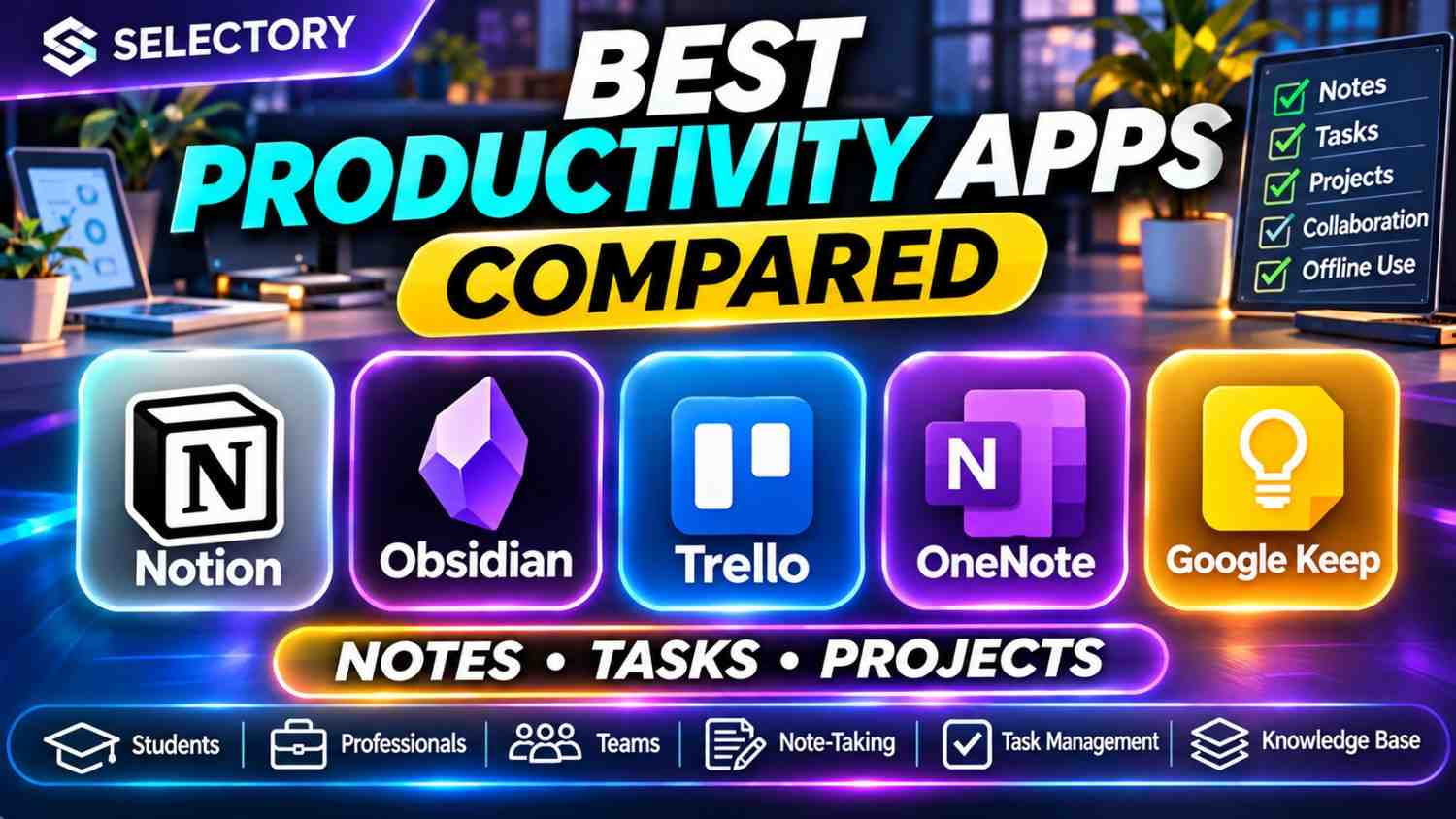
Best Productivity & Note-Taking Apps Compared: Notion vs Obsidian vs Trello vs OneNote vs Google Keep
Last Updated: November 2, 2026 | Reading Time: 16–20 Minutes
Your notes are scattered across apps. Your to-do list keeps growing. Important ideas disappear into forgotten folders, and your projects feel more complicated than they should.
Sound familiar?
The solution isn't necessarily another productivity app. It's choosing a system that fits how you think and work.
Five popular tools frequently appear in conversations about digital productivity:
- Notion — Notes, databases, tasks, and connected workspaces
- Obsidian — Local-first Markdown notes and linked knowledge
- Trello — Visual task and project management
- Microsoft OneNote — Digital notebooks for flexible note-taking
- Google Keep — Quick notes, lists, and reminders
But which one is actually best?
Is Notion better than Obsidian? Is Trello better for projects? Is OneNote free? Can you use Obsidian offline? Which note-taking app works best for students?
This guide answers those questions with practical comparisons, examples, workflows, and recommendations.
Quick answer: Choose Notion for organized workspaces, Obsidian for local-first connected notes, Trello for visual task tracking, OneNote for notebook-style learning, and Google Keep for capturing ideas quickly.
There is no universal winner. These applications solve different problems.
1. What Is a Productivity App?
A productivity app helps you organize information, manage tasks, plan projects, or complete work more efficiently.
Different apps focus on different needs.
Common Types of Productivity Apps
| Type | Main Purpose | Examples |
|---|---|---|
| Note-taking | Capture and organize information | OneNote, Google Keep |
| Knowledge management | Connect ideas and research | Obsidian, Notion |
| Task management | Track things to do | Trello, Notion |
| Project management | Organize work across stages | Trello, Notion |
| Digital workspace | Combine documents and workflows | Notion |
Some apps belong to multiple categories.
What Makes a Productivity App Good?
A useful app should help you:
- Capture information easily.
- Find it when needed.
- Organize work clearly.
- Track meaningful progress.
- Access information reliably.
- Avoid unnecessary complexity.
Important: An app that requires hours of daily maintenance may reduce productivity rather than improve it.
2. Best Productivity Apps at a Glance
| App | Best For | Free Plan | Main Strength |
|---|---|---|---|
| Notion | All-in-one workspaces | Yes | Databases and connected pages |
| Obsidian | Personal knowledge management | Yes | Local Markdown files and backlinks |
| Trello | Project and task boards | Yes | Simple Kanban workflows |
| OneNote | Digital notebooks | Yes | Flexible pages and handwriting |
| Google Keep | Quick notes and lists | Yes | Fast capture and Google integration |
Which App Should You Try First?
For students: OneNote or Notion.
For research notes: Obsidian.
For team projects: Trello or Notion.
For daily reminders: Google Keep.
For an organized personal dashboard: Notion.
For offline-first writing: Obsidian.
These are starting points, not absolute rankings.
PART 1: INDIVIDUAL APP REVIEWS
3. Notion — Best for All-in-One Productivity
Official Website: https://www.notion.com/
Notion combines documents, databases, tasks, and workspace organization.
Instead of keeping your notes, project plans, and content calendar in separate tools, you can organize them within one connected system.
What Can You Do With Notion?
- Create study notes
- Track assignments
- Build task lists
- Manage projects
- Maintain reading lists
- Organize content calendars
- Create personal dashboards
- Build team knowledge bases
- Connect related pages
- Use supported AI features
Example: A Student Dashboard
A student might create these pages:
STUDENT DASHBOARD
│
├── Today's Tasks
├── Class Notes
├── Assignment Tracker
├── Exam Preparation
├── Revision Calendar
└── Useful Resources
Each section can contain pages, tables, or databases.
Notion Advantages
- Flexible organization
- Databases with different views
- Templates
- Collaboration
- Cross-platform access
- Free plan for individuals
- Offline pages on supported apps
Notion Limitations
- Can feel complicated initially
- Advanced workspaces take time to build
- Some AI features require payment
- Free-team usage has restrictions
- Offline access requires appropriate page downloads
Is Notion Free?
Yes.
Notion's Free plan supports unlimited pages and blocks for individual use. Its current pricing page also lists a 5 MB per-file upload limit on the free tier and restrictions for multi-member workspaces.
Can You Use Notion Offline?
Yes. Notion supports offline pages in its desktop and mobile apps.
On the free plan, you can choose pages to download for offline access. Paid plans offer additional automatic downloading behavior.
Offline availability should not be confused with a fully local-first architecture.
Who Should Use Notion?
Students, freelancers, creators, small teams, and people who enjoy structured digital organization.
Verdict: A strong choice when you want notes, tasks, and projects connected in one workspace.
4. Obsidian — Best for Personal Knowledge Management
Official Website: https://obsidian.md/
Obsidian is a note-taking application built around local Markdown files.
Its central idea is simple: your notes are files that you control.
You can connect related notes through internal links.
What Makes Obsidian Different?
Obsidian is especially useful for building a personal knowledge base.
For example:
Artificial Intelligence
    │
    ├── Machine Learning
    │      ├── Supervised Learning
    │      └── Unsupervised Learning
    │
    ├── Neural Networks
    │
    └── AI Ethics
These topics can be connected using links.
What Are Backlinks?
Backlinks show which other notes refer to the current note.
If your note about "Machine Learning" is linked from several other notes, Obsidian can help you discover those relationships.
Obsidian Advantages
- Free core application
- Local-first storage
- Markdown files
- Offline access
- Internal links and backlinks
- Graph visualization
- Plugins and customization
- Optional encrypted sync service
Obsidian Limitations
- Collaboration is less straightforward than cloud-first team tools
- Advanced customization requires learning
- Plugins can introduce maintenance or security considerations
- Official cross-device sync costs extra
- Complex setups may become distracting
Is Obsidian Completely Free?
The core Obsidian application is free for personal, commercial, educational, and nonprofit use.
Optional services such as Obsidian Sync and Publish are paid.
Does Obsidian Work Offline?
Yes.
Obsidian stores your notes locally, making offline access a core part of its design.
Is Obsidian Better Than Notion for Privacy?
Obsidian's local-first architecture gives users direct control over their files.
However, actual privacy depends on your device security, backup choices, plugins, and whether you enable third-party syncing.
Who Should Use Obsidian?
Researchers, writers, students, developers, and people who want a long-term personal knowledge base.
Verdict: Particularly attractive if you prefer offline-first notes and ownership of plain-text files.
5. Trello — Best for Visual Task Management
Official Website: https://trello.com/
Trello is a task and project management platform built around boards, lists, and cards.
It is especially useful for visualizing the status of work.
How Does Trello Work?
Imagine a project board with three columns:
TO DO          IN PROGRESS        DONE

Research       Write Draft        Choose Topic
Design         Review Article     Gather Sources
Publish
Each task becomes a card.
You move cards between lists as work progresses.
Common Trello Uses
- Content calendars
- Marketing campaigns
- Team assignments
- Product launches
- Event planning
- Freelance projects
- Personal task boards
Trello Advantages
- Simple visual interface
- Easy task movement
- Due dates and assignees
- Team collaboration
- Automation options
- Free plan
- Integrations
Trello Limitations
- Not designed primarily for detailed note-taking
- Complex projects may need advanced features
- Free workspaces have board and collaborator limits
- Some advanced views require payment
- Too many cards can become difficult to manage
Is Trello Free?
Yes.
Trello's current Free plan includes up to 10 boards per workspace and up to 10 collaborators, with unlimited cards and other restrictions.
Who Should Use Trello?
Small teams, freelancers, creators, and anyone who likes a visual task board.
Verdict: A practical choice when your main problem is tracking what needs to be done.
6. Microsoft OneNote — Best for Digital Notebooks
Official Website: https://www.onenote.com/
Microsoft OneNote organizes notes into notebooks, sections, and pages.
Its flexible page layout makes it useful for classes, meetings, research, and personal organization.
OneNote Structure
COLLEGE NOTEBOOK
│
├── Mathematics
│   ├── Algebra
│   └── Calculus
│
├── Physics
│   ├── Mechanics
│   └── Optics
│
└── Chemistry
    ├── Organic Chemistry
    └── Physical Chemistry
What Can You Do With OneNote?
- Type notes
- Create notebooks
- Insert images
- Add handwritten annotations
- Organize class material
- Record ideas
- Search notes
- Sync notebooks
- Share supported notebooks
OneNote Advantages
- Familiar notebook organization
- Free access
- Handwriting support
- Flexible page layout
- Microsoft ecosystem integration
- Offline editing in supported apps
- Useful for class notes
OneNote Limitations
- Some advanced features depend on platform
- Syncing can occasionally require troubleshooting
- Notebook organization may become messy
- Less suited to complex project databases than Notion
Is OneNote Free?
Yes.
OneNote is available without purchasing a Microsoft 365 subscription, although storage and some connected features may depend on your Microsoft account and plan.
Does OneNote Work Offline?
Supported OneNote applications can maintain local notebook data for offline editing and synchronize changes when connectivity returns.
Who Should Use OneNote?
Students, teachers, researchers, and professionals who prefer a traditional notebook structure.
Verdict: A strong option for class notes, handwritten material, and flexible digital notebooks.
7. Google Keep — Best for Quick Notes and Reminders
Official Website: https://keep.google.com/
Google Keep is a lightweight note-taking app.
It's designed for capturing information quickly rather than building complex knowledge databases.
What Can You Save in Google Keep?
- Short text notes
- Checklists
- Shopping lists
- Reminders
- Images
- Voice notes on supported devices
- Shared notes
- Color-coded notes
Example Uses
TODAY'S TASKS

[ ] Reply to client
[ ] Buy groceries
[ ] Review presentation
[ ] Read 20 pages
[ ] Plan tomorrow
Google Keep Advantages
- Easy to learn
- Quick note capture
- Google account sync
- Labels and colors
- Shared notes
- Useful checklists
- Free access
Google Keep Limitations
- Limited complex organization
- Not a full project management platform
- No Notion-style relational databases
- Not designed for extensive linked research notes
- Offline behavior depends on the app and device
Who Should Use Google Keep?
Anyone who wants to save quick ideas, lists, and reminders with minimal setup.
Verdict: Excellent for quick capture, but not a complete replacement for a sophisticated knowledge management system.
PART 2: HEAD-TO-HEAD COMPARISONS
8. Notion vs Obsidian: Which Is Better?
This is one of the most important comparisons for serious note-takers.
| Feature | Notion | Obsidian |
|---|---|---|
| Storage approach | Cloud-centered | Local-first |
| Offline access | Supported downloaded pages | Core functionality |
| Markdown | Supported in workflows | Native file format |
| Databases | Major strength | Plugin-dependent alternatives |
| Backlinks | Available | Major strength |
| Collaboration | Built-in | More limited |
| Personal knowledge graphs | Not core focus | Built-in graph |
| Free personal use | Yes | Yes |
| Official sync | Included through workspace | Optional paid service |
Choose Notion If:
- You want connected databases.
- You manage multiple projects.
- You need team collaboration.
- You prefer visual dashboards.
- You want an all-in-one workspace.
Choose Obsidian If:
- You want local files.
- You frequently work offline.
- You prefer Markdown.
- You connect ideas through backlinks.
- You want long-term control over your notes.
Is Obsidian Better Than Notion for Students?
Obsidian may be useful for connecting concepts across subjects.
Notion may be easier for tracking assignments, deadlines, and structured study plans.
Both can be effective.
Our recommendation: Choose based on whether you need a knowledge network or a structured workspace.
9. Notion vs Trello: Which Is Better for Project Management?
| Feature | Notion | Trello |
|---|---|---|
| Task lists | Yes | Yes |
| Kanban boards | Yes | Core feature |
| Databases | Strong focus | Card-based organization |
| Documents | Strong focus | Card descriptions and attachments |
| Project dashboards | Flexible | Plan-dependent |
| Team collaboration | Yes | Yes |
| Learning curve | Moderate | Usually simpler |
Choose Notion If:
Your projects need detailed documents, related databases, and custom workflows.
Choose Trello If:
You want a simple visual board for tracking tasks and responsibilities.
Example
A blogger might use Notion to store article briefs, research, and publishing calendars.
A small editorial team might use Trello to move articles through:
Ideas → Research → Writing → Editing → Published
Both approaches can work.
10. OneNote vs Google Keep: Which Is Better?
| Feature | OneNote | Google Keep |
|---|---|---|
| Quick notes | Yes | Excellent fit |
| Long class notes | Strong fit | Limited |
| Notebook hierarchy | Yes | No traditional notebooks |
| Checklists | Yes | Yes |
| Handwriting | Yes | Drawing features vary |
| Complex study material | Better suited | Less suited |
| Simple reminders | Available through ecosystem | Core use case |
Choose OneNote If:
You want detailed notebooks for classes, meetings, or research.
Choose Google Keep If:
You mainly want fast notes, reminders, and checklists.
Can Google Keep Replace OneNote?
For quick notes, possibly.
For extensive class notes, handwritten diagrams, and notebook-style organization, OneNote is generally more suitable.
11. Notion vs OneNote: Which Is Better for Students?
Notion and OneNote approach studying differently.
Notion is useful for organizing assignments, courses, deadlines, and revision schedules.
OneNote is useful for capturing lecture notes, handwriting, and subject-based notebooks.
Recommended Combination
Use OneNote for lecture material.
Use Notion for assignment tracking and study planning.
However, using both is optional. A well-maintained single app may be better than two poorly organized systems.
12. Obsidian vs OneNote: Which Is Better for Research?
Obsidian emphasizes connected Markdown notes and backlinks.
OneNote emphasizes flexible notebooks and mixed-format notes.
Choose Obsidian For:
- Linked concepts
- Research summaries
- Writing projects
- Long-term knowledge management
Choose OneNote For:
- Handwritten notes
- Lecture capture
- Flexible page layouts
- Mixed text and image notes
The better choice depends on whether you prefer structured Markdown or flexible notebook pages.
PART 3: FREE PLANS, PRICING, OFFLINE USE AND PRIVACY
13. Which Note-Taking Apps Are Completely Free?
All five offer free access, but the limitations differ.
| App | Free Core Use | Common Paid Upgrade |
|---|---|---|
| Notion | Yes | Larger uploads, team and AI features |
| Obsidian | Yes | Optional Sync and Publish |
| Trello | Yes | More boards and advanced project features |
| OneNote | Yes | Additional Microsoft storage or services |
| Google Keep | Yes | No separate premium Keep subscription |
Do You Need a Paid Note-Taking App?
Not necessarily.
Many individuals can manage notes and tasks using free versions.
Upgrade only when you need a specific capability.
14. Productivity App Pricing Compared
These are published reference prices, not guaranteed local checkout amounts.
| Platform | Free Plan | Example Paid Option |
|---|---|---|
| Notion | $0 | Plus: $10/user/month on annual billing |
| Obsidian | Free core app | Sync: $4/user/month on annual billing |
| Trello | $0 | Standard: $5/user/month on annual billing |
| OneNote | Free | Microsoft storage/subscription options |
| Google Keep | Free | No standalone Keep subscription |
Important: Taxes, currency conversion, billing frequency, and regional offers may change the actual amount.
Which Is the Best Value?
For personal notes, Obsidian, OneNote, and Google Keep can be very economical.
For connected databases, Notion's free plan may be sufficient.
For small project boards, Trello Free may cover basic needs.
15. Best Offline Note-Taking App
Offline access matters if you:
- Travel frequently
- Have unreliable internet
- Study in locations with limited connectivity
- Prefer local file storage
- Want access during outages
Offline Comparison
| App | Offline Experience |
|---|---|
| Obsidian | Local-first notes |
| OneNote | Offline editing in supported apps |
| Notion | Downloaded pages available offline |
| Google Keep | App/device-dependent offline behavior |
| Trello | Primarily online project collaboration |
Best Choice for Offline-First Users
Obsidian is the clearest fit for local-first note-taking.
OneNote is also worth considering for offline notebooks.
Notion supports offline pages, but users should prepare the required content in advance.
16. Which Note-Taking App Is Best for Privacy?
Privacy depends on the app, account settings, storage, sharing permissions, and connected services.
Obsidian
Local files can remain on your device without being uploaded to Obsidian's servers.
Optional Obsidian Sync uses end-to-end encryption.
Notion
Notion is cloud-centered and offers security controls and privacy policies.
Trello
Trello stores project information through its online workspace system.
OneNote
Cloud-synced notebooks commonly use Microsoft services.
Google Keep
Notes are associated with your Google account and relevant Google services.
Privacy Checklist
Before storing sensitive information:
- Review the privacy policy.
- Check where data is stored.
- Enable account security.
- Review sharing permissions.
- Understand backup options.
- Avoid storing passwords in ordinary notes.
- Confirm your organization's policies.
Local-first storage provides more direct file control, but it does not automatically make a device secure.
PART 4: PRACTICAL PRODUCTIVITY WORKFLOWS
17. How to Build a Student Productivity System
A useful student system should answer three questions:
- What do I need to learn?
- What do I need to complete?
- What should I revise next?
Recommended Structure
STUDY SYSTEM
│
├── Subjects
│   ├── Notes
│   ├── Practice Questions
│   └── Important Concepts
│
├── Assignments
│   ├── Pending
│   ├── In Progress
│   └── Completed
│
├── Revision Plan
│
└── Weekly Review
Suggested Tools
OneNote: Class notes.
Notion: Assignment tracking.
Obsidian: Connected concepts.
Google Keep: Quick reminders.
You do not need all four.
Choose the smallest combination that solves your problems.
18. How to Create a Personal Knowledge Base in Obsidian
Step 1: Create a Vault
A vault is the folder containing your notes.
Step 2: Create Topic Notes
Example:
# Machine Learning

Machine learning is a field of AI
focused on learning patterns from data.

## Related Topics

- [[Artificial Intelligence]]
- [[Supervised Learning]]
- [[Neural Networks]]
Step 3: Link Related Notes
Use internal links to connect concepts.
Step 4: Add Sources
Record where important information came from.
Step 5: Review Your Notes
Update notes as your understanding improves.
Step 6: Back Up Your Vault
Use a reliable backup method appropriate for your devices.
Why This Works
Instead of collecting isolated notes, you create a connected system of ideas.
19. How to Create a Content Calendar in Notion
A content calendar helps creators plan, track, and publish consistently.
Suggested Database Columns
| Property | Example |
|---|---|
| Title | Best Productivity Apps |
| Category | Technology |
| Status | Draft |
| Publish Date | Planned date |
| Author | Team member |
| Primary Keyword | best productivity apps |
| URL | Final article URL |
Recommended Statuses
Idea
  ↓
Research
  ↓
Writing
  ↓
Editing
  ↓
Ready
  ↓
Published
  ↓
Update RequiredContent Calendar Tip
Don't measure productivity only by the number of posts published.
Track quality, reader usefulness, and performance as well.
20. How to Manage Projects in Trello
Step 1: Create a Board
Name it after your project.
Step 2: Add Lists
Use:
- To Do
- In Progress
- Review
- Done
Step 3: Create Cards
Each card should represent one actionable task.
Step 4: Assign Responsibility
For team projects, assign the appropriate person.
Step 5: Add Due Dates
Use realistic deadlines.
Step 6: Review the Board
Move cards as work progresses.
Example Project
WEBSITE LAUNCH

TO DO
- Write FAQ
- Prepare images

IN PROGRESS
- Build homepage
- Test contact form

REVIEW
- Check mobile layout

DONE
- Choose domain
Pro Tip
Keep card titles action-oriented.
"Write homepage introduction" is clearer than "Homepage."
21. How to Organize Class Notes in OneNote
Step 1: Create a Notebook
Example: "Semester Notes."
Step 2: Add Sections
Create one section per subject.
Step 3: Add Pages
Use one page per lecture or topic.
Step 4: Add Visuals
Include diagrams, tables, and handwritten notes.
Step 5: Review Weekly
Highlight important concepts and unresolved questions.
Step 6: Check Sync
Ensure your notebook is properly synchronized before switching devices.
22. How to Use Google Keep for Daily Productivity
Google Keep works well for simple capture.
Suggested Labels
- Work
- Personal
- Shopping
- Ideas
- Study
- Important
Daily Workflow
- Capture new ideas immediately.
- Create a short daily checklist.
- Use labels for organization.
- Set reminders when needed.
- Archive completed notes.
- Review remaining tasks at the end of the day.
Example
TODAY

[ ] Finish assignment
[ ] Send project update
[ ] Read for 30 minutes
[ ] Plan tomorrow
The goal is to reduce mental clutter, not build a complicated dashboard.
PART 5: BETTER PRODUCTIVITY HABITS
23. How to Choose the Right Productivity App
Use this decision framework.
Ask Yourself
- Do I mainly write notes or manage tasks?
- Do I need offline access?
- Do I work alone or with a team?
- Do I need handwriting?
- Do I want local files?
- How much setup can I tolerate?
- Am I willing to pay?
Simple Rule
Choose the app that requires the least effort to complete your most common task.
24. Common Productivity App Mistakes
Mistake 1: Using Too Many Apps
Information becomes scattered.
Mistake 2: Spending More Time Organizing Than Working
A beautiful dashboard is not the same as progress.
Mistake 3: Creating Too Many Categories
Complex structures are harder to maintain.
Mistake 4: Never Reviewing Notes
Unreviewed information becomes difficult to use.
Mistake 5: Ignoring Backups
Important notes should have a reliable recovery plan.
Mistake 6: Using a Task App as a Document Archive
Choose tools according to their strengths.
Mistake 7: Ignoring Privacy Settings
Shared pages and boards may expose information.
Mistake 8: Buying Premium Plans Too Early
Test the free version first.
Mistake 9: Copying Someone Else's Entire System
Adapt workflows to your actual needs.
Mistake 10: Measuring Productivity by App Usage
Track completed meaningful work instead.
25. A Simple Weekly Productivity System
You don't need a complex system to become more organized.
Monday: Plan
Identify your three most important outcomes.
Tuesday–Thursday: Execute
Focus on tasks that support those outcomes.
Friday: Review
Check completed work and unfinished tasks.
Weekend: Reset
Archive irrelevant notes, review upcoming deadlines, and prepare for the next week.
Weekly Review Questions
- What did I complete?
- What remains unfinished?
- Which tasks are no longer important?
- What should I prioritize next?
- Is my current app setup helping or distracting me?
A simple system used consistently is more valuable than a complicated system used occasionally.
PART 6: FREQUENTLY ASKED QUESTIONS
26. FAQs About Productivity and Note-Taking Apps
1. What is the best productivity app?
There is no universal winner. Notion is useful for connected workspaces, Trello for visual tasks, and other apps for different note-taking needs.
2. What is the best free note-taking app?
Obsidian, OneNote, and Google Keep are strong free options for different workflows.
3. Is Notion better than Obsidian?
Notion is more workspace- and database-oriented. Obsidian is more local-first and knowledge-linking-oriented.
4. Is Obsidian completely free?
The core app is free. Optional Sync and Publish services cost extra.
5. Is Notion free for students?
Notion has a free plan and offers education-related benefits for eligible users.
6. Is Trello free?
Yes. Trello has a free plan with workspace limits.
7. Is Microsoft OneNote free?
Yes. OneNote is available for free, although some connected services may have limits.
8. Is Google Keep free?
Yes. Google Keep is available without a standalone paid subscription.
9. Which app works best offline?
Obsidian is a strong local-first choice. OneNote and Notion also offer offline capabilities under different conditions.
10. Can Notion work offline?
Yes. Supported desktop and mobile apps allow pages to be downloaded for offline access.
11. Can Obsidian work without internet?
Yes. Its local-first design supports offline note-taking.
12. Is Obsidian better for privacy?
Its local-file architecture offers direct control, but device security and sync choices still matter.
13. Which app is best for students?
OneNote for class notes, Notion for structured planning, and Obsidian for connected knowledge are all worth considering.
14. Which app is best for handwritten notes?
OneNote is a useful choice for handwriting and flexible notebook pages.
15. Which app is best for research notes?
Obsidian is particularly useful for linked research notes and knowledge management.
16. Which app is best for team projects?
Trello and Notion both support collaborative workflows.
17. Is Trello better than Notion?
Trello is often simpler for visual task tracking. Notion supports broader workspace structures.
18. Can Notion replace Trello?
For many workflows, yes. Notion includes board views and task databases.
19. Can Google Keep replace Notion?
For quick notes, perhaps. For complex databases and project management, Keep is less suitable.
20. Is OneNote better than Google Keep?
OneNote suits detailed notebooks. Keep suits quick capture.
21. Can I use Notion for a content calendar?
Yes. Notion databases can organize publishing workflows.
22. Can I use Trello for studying?
Yes. Trello can track assignments, deadlines, and revision tasks.
23. Can I use Obsidian for exam preparation?
Yes. It can help connect concepts, create study notes, and organize references.
24. Can I store PDFs in Notion?
Yes, subject to file upload limits and plan restrictions.
25. Can I attach files in OneNote?
OneNote supports file-related note workflows, subject to app and storage limitations.
26. Does Obsidian support Markdown?
Yes. Markdown is central to its note format.
27. What are backlinks in Obsidian?
Backlinks show which notes link to the current note.
28. Does Notion have AI features?
Yes. Notion offers AI capabilities, with availability and usage depending on the plan.
29. Does Trello have automation?
Yes. Trello supports automation with plan-dependent limits.
30. Can I share Google Keep notes?
Yes. Keep supports collaboration on notes.
31. Can I sync Obsidian across devices?
Yes, using Obsidian Sync or another appropriately configured synchronization method.
32. Is Obsidian Sync free?
Official Obsidian Sync is a paid service.
33. Can I export my Notion notes?
Notion supports exporting workspace content in supported formats.
34. Can I use OneNote on Android?
Yes. OneNote is available on supported Android devices.
35. Can I use Google Keep on iPhone?
Yes. Google Keep has supported iOS access.
36. Which app is best for writers?
Obsidian is useful for connected notes, while Notion can help organize writing projects.
37. Which app is best for freelancers?
Notion and Trello are worth considering for project organization.
38. Which app is best for small businesses?
Notion may suit documentation and databases; Trello may suit straightforward task tracking.
39. Should I pay for Notion or Obsidian?
Only if the premium features solve a real need that the free version cannot.
40. Which productivity app should a beginner choose?
Start with Google Keep for quick notes, OneNote for notebooks, Trello for task boards, or Notion for structured workspaces.
27. Final Verdict: Which App Should You Use?
| Your Main Goal | Recommended Starting Point |
|---|---|
| Quick daily notes | Google Keep |
| Class and lecture notes | OneNote |
| Connected personal knowledge | Obsidian |
| Visual project tracking | Trello |
| All-in-one workspace | Notion |
| Offline-first Markdown notes | Obsidian |
| Team task boards | Trello |
| Study planning and databases | Notion |
| Handwritten digital notebooks | OneNote |
| Simple reminders and checklists | Google Keep |
Our Recommendation for Beginners
Start with one app.
Use it consistently for two weeks.
If you encounter a real limitation, consider adding another tool.
Our Recommendation for Students
Use OneNote or Notion as your primary system.
Consider Obsidian if you regularly connect complex concepts.
Our Recommendation for Teams
Choose Trello for straightforward visual project tracking.
Choose Notion when you also need documents, databases, and a shared knowledge base.
Conclusion
Notion, Obsidian, Trello, OneNote, and Google Keep are all useful productivity tools.
But they solve different problems.
Notion brings structured information into connected workspaces.
Obsidian helps build a local-first network of knowledge.
Trello makes task progress visible.
OneNote offers flexible digital notebooks.
Google Keep makes capturing ideas simple.
The best app is the one you'll actually use.
Don't build a complicated productivity system when a simple checklist would solve the problem.
Productivity comes from completing meaningful work—not collecting more productivity apps.
Official Sources and Further Reading
1. Notion — Official Website
2. Notion — Plans and Pricing
https://www.notion.com/pricing
3. Notion — Offline Pages
https://www.notion.com/help/use-pages-offline
4. Obsidian — Official Website
5. Obsidian — Plans and Pricing
6. Obsidian — License Overview
7. Trello — Official Website
8. Trello — Plans and Pricing
9. Microsoft OneNote
10. Microsoft — OneNote Help
https://support.microsoft.com/onenote
11. Google Keep
12. Google Keep Help
https://support.google.com/keep/
Editorial Note: This article is an independent comparison based on documented features and common use cases. Prices, feature limits, offline behavior, and availability may change. No independent hands-on benchmark testing is claimed.