Technology / 23 min read · English
Best Design & Video Editing Apps Compared: Canva vs Adobe Express vs CapCut vs VN vs InShot
Canva, Adobe Express, CapCut, VN or InShot—which should you choose? Compare the best design and video editing apps for thumbnails, Instagram Reels, YouTube Shorts, posters and business content, including free features, watermarks, export quality and practical workflows.
Selectory editorial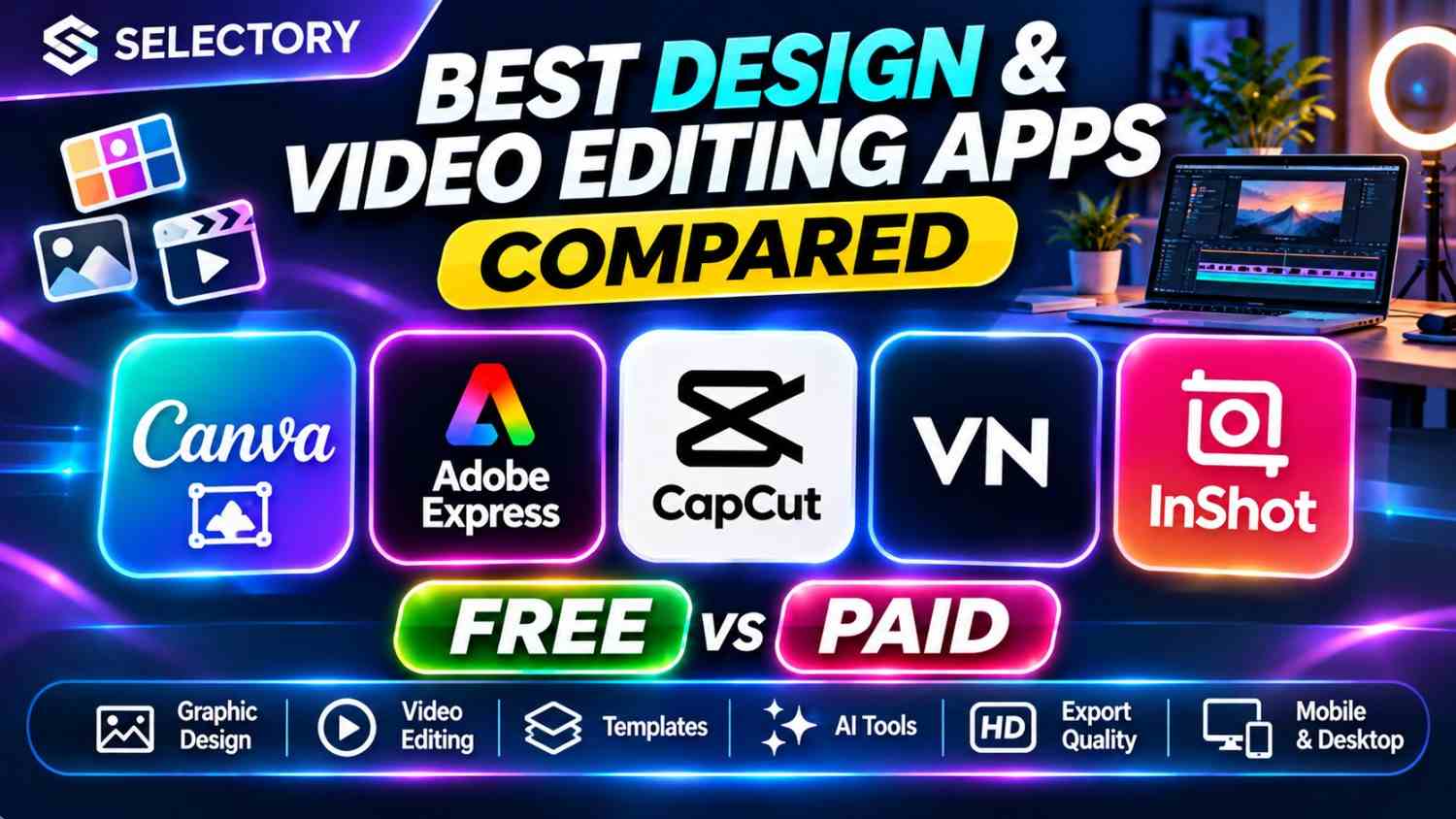
Best Design & Video Editing Apps Compared: Canva vs Adobe Express vs CapCut vs VN vs InShot
Last Updated: November 2, 2026 | Reading Time: 15–19 Minutes
Which app should you use to create professional Instagram posts, YouTube thumbnails, Reels, Shorts, posters, and business videos?
If you've searched for Canva vs Adobe Express, CapCut vs VN, CapCut vs InShot, or the best free video editing app without watermark, you're in the right place.
There are hundreds of design and editing apps, but most creators don't need dozens of subscriptions.
They need a small number of reliable tools that make their work easier.
In this guide, we'll compare five popular creative platforms:
- Canva — Graphic design, templates, presentations, and simple videos
- Adobe Express — Graphic design, branded content, and quick video creation
- CapCut — Timeline-based video editing, captions, and social content
- VN Video Editor — Mobile timeline editing and manual creative control
- InShot — Quick mobile edits, Reels, and everyday social videos
We'll explain what each app does best, where it falls short, which free features matter, and how to choose the right tool for your workflow.
Quick answer: Choose Canva for easy graphic design, Adobe Express for Adobe-connected creative work, CapCut for feature-rich short-form editing where available, VN for manual timeline editing, and InShot for quick mobile video edits.
These recommendations are based on product positioning and features, not a controlled hands-on performance benchmark.
1. Best Design and Video Editing Apps at a Glance
| App | Primary Focus | Best For | Free Version | Paid Features |
|---|---|---|---|---|
| Canva | Design + simple video | Thumbnails, posters, social graphics | Yes | Yes |
| Adobe Express | Design + content creation | Branded graphics, marketing | Yes | Yes |
| CapCut | Video editing | Reels, Shorts, captions | Yes, where available | Yes |
| VN | Video editing | Manual timeline editing | Yes | Varies |
| InShot | Mobile video editing | Fast social video edits | Yes | Yes |
Which App Should You Choose?
For YouTube thumbnails: Start with Canva or Adobe Express.
For Instagram posts: Canva is a practical starting point.
For Reels and Shorts: Compare CapCut, VN, and InShot.
For a small business: Canva or Adobe Express may simplify recurring graphics.
For mobile video editing: VN and InShot are worth trying.
For creators who want more video effects: Explore CapCut where officially available.
PART 1: GRAPHIC DESIGN APPS
2. Canva: Best for Easy Graphic Design
Official Website: https://www.canva.com/
Canva is an online visual design platform with templates, drag-and-drop editing, stock media, presentation tools, and video creation features.
It's particularly convenient for people who don't have professional design experience.
What Can You Create With Canva?
- YouTube thumbnails
- Instagram posts
- Instagram Stories
- Posters
- Presentations
- Resumes
- Infographics
- Business cards
- Website graphics
- Short promotional videos
- Educational worksheets
Why Do Beginners Like Canva?
Instead of starting with a blank canvas, you can choose a template and customize it.
For example, a creator making a YouTube thumbnail can:
- Search for a thumbnail template.
- Replace the headline.
- Upload a photograph.
- Adjust fonts and colors.
- Add relevant visual elements.
- Export the final design.
Canva Free vs Paid
Canva provides a free plan with templates, design tools, and stock media.
Paid plans expand access to premium assets, branding tools, AI features, and other capabilities.
On its India pricing page, Canva lists Free, Pro Lite, Pro, and Business tiers. Prices and inclusions may change.
Canva Advantages
- Beginner-friendly interface
- Large template collection
- Browser-based editing
- Collaboration features
- Useful for many design formats
- Free plan available
Canva Limitations
- Some assets require payment
- Advanced design controls differ from professional desktop software
- Templates can look generic without customization
- Some AI features have usage limits
Who Should Use Canva?
Students, teachers, bloggers, social media creators, freelancers, and small businesses.
Verdict: Canva is a strong starting point for anyone who regularly creates graphics and wants a simple workflow.
3. Adobe Express: Best for Adobe-Centered Creative Work
Official Website: https://www.adobe.com/express/
Adobe Express is Adobe's accessible content-creation platform.
It combines templates, image editing, graphic design, animation, and video creation.
What Can Adobe Express Create?
- Social media posts
- Promotional banners
- Posters
- Flyers
- Short videos
- Brand graphics
- Presentations
- Marketing materials
Why Consider Adobe Express?
Adobe Express is especially relevant for people who already use Adobe products or want an Adobe-connected creative workflow.
Its interface is designed to be more approachable than traditional professional editing software.
Adobe Express Advantages
- Templates for common content formats
- Adobe ecosystem connections
- Quick creative editing
- Graphic and video features
- Free plan available
Adobe Express Limitations
- Premium assets and tools may require payment
- Advanced editing needs may exceed its scope
- Availability of generative AI features depends on plan
- Some workflows are better suited to dedicated Adobe applications
Who Should Use Adobe Express?
Content marketers, designers, brand managers, and creators who already use Adobe services.
Verdict: A useful Canva alternative, particularly for Adobe-oriented workflows.
4. Canva vs Adobe Express: Which Is Better?
This is one of the most practical comparisons for people creating social media graphics.
| Category | Canva | Adobe Express |
|---|---|---|
| Beginner-friendly design | Strong focus | Strong focus |
| Templates | Extensive | Extensive |
| Social media graphics | Yes | Yes |
| Presentations | Yes | Yes |
| Short video editing | Yes | Yes |
| Brand management | Available | Available |
| AI creative features | Plan-dependent | Plan-dependent |
| Free access | Yes | Yes |
| Professional ecosystem | Canva tools | Adobe integrations |
Is Canva Better Than Adobe Express?
Canva may feel more convenient if your priority is quickly producing many different designs.
Adobe Express may be a better fit if you already use Adobe's creative ecosystem.
Which Is Better for YouTube Thumbnails?
Both can produce thumbnails.
Compare them using:
- Ease of removing backgrounds
- Font selection
- Layer control
- Image assets
- Export quality
- Speed of making revisions
Which Is Better for Small Businesses?
Both are useful.
Choose based on your existing tools, branding requirements, collaboration needs, and total cost.
If you already work efficiently in one platform, switching only because another app is popular may not improve your results.
PART 2: VIDEO EDITING APPS
5. CapCut: Best for Feature-Rich Short-Form Video Editing
Official Website: https://www.capcut.com/
CapCut is a video editing platform offering timeline editing, templates, captions, effects, and AI-related creative features.
It is commonly discussed in connection with TikTok-style videos, Instagram Reels, and YouTube Shorts.
CapCut Features
Depending on the version and plan:
- Video trimming and splitting
- Timeline editing
- Transitions
- Text overlays
- Captions
- Filters
- Effects
- Audio editing
- Templates
- AI-assisted features
Why Do Creators Use CapCut?
Its short-form editing workflows can make it easier to combine clips, captions, music, and effects.
CapCut Free vs Pro
CapCut publishes free and paid plans.
Its official pricing page lists basic editing tools in the free tier and additional premium features and AI credits in paid tiers.
Availability warning: CapCut availability and access vary by country. In India, official access has been restricted, so users should verify current legal availability rather than downloading unofficial or modified APKs.
CapCut Advantages
- Feature-rich editing
- Social video templates
- Caption-related workflows
- Creative effects
- Desktop and web options in supported regions
CapCut Limitations
- Country restrictions
- Some features require payment
- Templates and assets may have separate restrictions
- AI features can use credits
- Complex effects may increase editing time
Who Should Use CapCut?
Creators in supported regions who want short-form editing tools and automated features.
Verdict: Worth evaluating where officially available, but not a dependable recommendation for users in regions where access is restricted.
6. VN Video Editor: Best for Manual Mobile Editing
Official Website: https://www.vlognow.me/
VN Video Editor is a mobile-focused video editing application with timeline-based controls.
It's useful for creators who prefer manually arranging clips rather than relying primarily on templates.
Common VN Features
- Multi-track editing
- Clip trimming
- Speed adjustments
- Text overlays
- Music and sound editing
- Transitions
- Keyframe-related controls
- Export settings
Specific features depend on platform and version.
Why Choose VN?
VN is worth exploring when you want more control over how clips are arranged and edited.
VN Advantages
- Timeline-oriented interface
- Useful manual editing controls
- Mobile workflow
- Free entry
- Suitable for learning editing fundamentals
VN Limitations
- Some features depend on device and version
- Complex projects can be demanding on phones
- Availability of premium tools may change
- Export capabilities depend on source footage and hardware
Is VN Completely Free?
VN has offered free editing with no mandatory watermark for standard exports, but you should check the current app version and any premium features before relying on that promise.
Who Should Use VN?
Students, mobile YouTubers, vloggers, and creators who want timeline editing without immediately paying for a subscription.
Verdict: A practical option for learning manual video editing.
7. InShot: Best for Quick Mobile Video Editing
Official Website: https://inshot.com/
InShot is a mobile video and photo editing application.
It's designed for users who want to make quick edits without a complicated production interface.
What Can You Do With InShot?
- Trim videos
- Combine clips
- Add music
- Add text
- Adjust canvas size
- Apply filters
- Create simple transitions
- Edit photographs
- Export social media videos
Why Is InShot Popular?
Its workflow is straightforward.
You can import a video, cut unnecessary sections, add captions or music, and export it.
InShot Advantages
- Accessible mobile interface
- Useful for quick editing
- Common social media aspect ratios
- Photo and video tools
- Free version
InShot Limitations
- Some effects and tools require payment
- Free exports may include watermark restrictions
- Less suitable for complicated multi-layer productions
- Subscription details vary by store and region
Who Should Use InShot?
Beginners, social media users, and creators who want fast everyday edits.
Verdict: A convenient choice when speed and simplicity matter more than advanced editing control.
8. CapCut vs VN vs InShot: Detailed Comparison
| Feature | CapCut | VN | InShot |
|---|---|---|---|
| Primary focus | Social video + effects | Timeline editing | Quick mobile editing |
| Beginner-friendly | Yes | Yes, with learning | Yes |
| Manual timeline control | Yes | Strong focus | Available |
| Templates | Prominent | More editing-focused | Available |
| Captions | Available | Available, varies | Available |
| Effects | Extensive | Available | Available |
| Free entry | Where supported | Yes | Yes |
| Watermark | Depends on features/assets | Generally no mandatory standard-export watermark | Free version may add watermark |
| India availability | Restricted; verify | Check app store | Check app store |
CapCut vs VN: Which Is Better?
Choose CapCut where officially available if you want a template- and effect-oriented workflow.
Choose VN if you prefer manual timeline control and an accessible editing app.
VN vs InShot: Which Is Better?
VN is worth testing for longer, multi-clip editing.
InShot is useful for quick social videos and simple edits.
CapCut vs InShot: Which Is Better?
CapCut offers a broader range of video-oriented creative features.
InShot focuses on straightforward mobile editing.
Your choice should depend on what you actually create.
PART 3: CHOOSING BY USE CASE
9. Best App for Instagram Reels
A good Reels editor should support:
- Vertical video
- Clip trimming
- Text overlays
- Captions
- Audio
- Smooth transitions
- Reliable export
Suggested Choices
For quick edits: InShot
For manual timeline work: VN
For effects and templates in supported regions: CapCut
For graphic overlays and branded assets: Canva or Adobe Express
Recommended Reel Workflow
Ideal Video Format
A common vertical format is:
1080 × 1920 pixels, 9:16 aspect ratio.
Platform requirements can change, so check current publishing specifications.
10. Best App for YouTube Shorts
YouTube Shorts usually benefit from:
- A clear opening
- Readable captions
- Tight editing
- Relevant visuals
- Consistent audio
- Vertical framing
Recommended Tools
- VN for manual editing
- InShot for quick edits
- CapCut where available
- Canva for title cards and graphics
How to Edit a YouTube Short
- Import your clips.
- Remove long pauses.
- Keep the opening clear.
- Add captions.
- Balance voice and music.
- Review the video on a small screen.
- Export at a suitable resolution.
- Upload with an accurate title and description.
Tip: Editing style alone does not guarantee views. Content relevance and viewer satisfaction matter.
11. Best App for YouTube Thumbnails
For thumbnails, prioritize a design tool over a dedicated video editor.
Recommended
Canva or Adobe Express
Effective Thumbnail Principles
- One clear main subject
- Short readable headline
- Strong contrast
- Consistent visual hierarchy
- Relevant imagery
- Minimal clutter
Example Thumbnail Layout
TOP: Short topic label

CENTER LEFT:
Large headline

CENTER RIGHT:
Main subject or product image

BOTTOM:
Small supporting visual or comparison

FORMAT:
16:9
Common Mistake
Adding too much text.
A thumbnail should communicate the idea quickly, especially on mobile screens.
12. Best Design App for Students
Students may need to create:
- Presentations
- Posters
- Project covers
- Study notes
- Infographics
- Class announcements
- Simple educational videos
Suggested Choice
Start with Canva Free or Adobe Express Free.
For video assignments, try VN or InShot.
Student Tip
Check whether your school or university provides access to educational design plans.
Don't assume that every premium feature is automatically free for students.
13. Best App for Small Businesses
Small businesses often need:
- Promotional banners
- Product announcements
- Festival posts
- Price lists
- Social media advertisements
- Short product videos
- Brand templates
Suggested Workflow
Canva or Adobe Express: Create branded graphics.
VN or InShot: Edit product videos.
Shared brand guidelines: Maintain consistent fonts, colors, and logo placement.
What Matters Most?
Not the number of effects.
A business needs clear communication, brand consistency, and accurate product information.
14. Best App for Freelancers and Content Creators
Freelancers may produce:
- Social media graphics
- Reels
- YouTube Shorts
- Promotional videos
- Presentation decks
- Client advertisements
Recommended Tool Combination
| Task | Tool to Try |
|---|---|
| Social graphics | Canva |
| Adobe-connected design | Adobe Express |
| Manual mobile video editing | VN |
| Quick client videos | InShot |
| Effect-heavy video where available | CapCut |
Professional Tip
Keep source files, exported files, fonts, licenses, and client assets organized.
Also check whether your tool's subscription allows the intended commercial use.
PART 4: FREE VS PAID, WATERMARKS AND EXPORTS
15. Which Editing Apps Are Free?
All five platforms offer some form of free access, although regional availability and limitations differ.
| App | Free Access | Typical Limitation |
|---|---|---|
| Canva | Yes | Premium assets and advanced tools |
| Adobe Express | Yes | Premium features |
| CapCut | Where available | Pro tools, AI credits, regional access |
| VN | Yes | Version-dependent premium options |
| InShot | Yes | Ads, premium tools, watermark conditions |
Is Free Editing Good Enough?
For many beginners, yes.
You may not need paid tools for:
- Basic trimming
- Simple posters
- Social media graphics
- Text overlays
- Standard exports
Upgrade only when you need a specific premium feature.
16. Best Free Video Editor Without Watermark
This is a common search question, but it requires an important distinction.
A free editor may export without a watermark for basic projects while adding restrictions when you use premium templates, effects, or assets.
What to Check
- Is there an automatic watermark?
- Can it be removed?
- Does removal require payment?
- Are premium assets being used?
- Does the export include an outro?
- Are there restrictions on commercial use?
Recommended Starting Point
VN is worth checking for standard watermark-free editing.
However, confirm the current version and export terms.
Do not assume that every export from every free app is watermark-free.
17. Can You Export Videos in 4K?
Some editing applications support high-resolution export, depending on:
- Device capabilities
- App version
- Subscription
- Source footage
- Codec
- Frame rate
Does 4K Always Look Better?
No.
Upscaling low-resolution footage does not automatically restore missing detail.
For many social media videos, well-edited 1080p footage can be sufficient.
Export Checklist
- Correct aspect ratio
- Suitable resolution
- Consistent frame rate
- Clear audio
- Readable captions
- No accidental black borders
- No unwanted watermark
18. Is Canva Pro Worth It?
Canva Pro may be useful if you frequently need:
- Premium templates
- Expanded stock libraries
- Background removal
- Brand kits
- Advanced resizing
- Additional AI features
- Larger cloud storage
But Canva Free may be sufficient for occasional designs.
Simple Decision Rule
Ask:
Will the premium features save enough time or improve enough work to justify the subscription?
If not, continue with the free version.
19. Is CapCut Pro Worth It?
CapCut Pro may appeal to users who need premium effects, templates, AI credits, or other advanced features.
However, first verify that the service is officially available in your country.
Consider Paying Only If
- You use the app regularly
- Your required features are premium
- Your workflow depends on those features
- The subscription is affordable
- The terms fit your needs
Avoid subscribing solely because an influencer recommends it.
PART 5: PRACTICAL TUTORIALS
20. How to Make a YouTube Thumbnail in Canva
Step 1: Open Canva
Visit the official Canva website or app.
Step 2: Search for a YouTube Thumbnail
Choose a suitable canvas or template.
Step 3: Add a Main Subject
Upload your own image or select an appropriately licensed asset.
Step 4: Write a Short Headline
Example:
BEST VIDEO EDITORS
Step 5: Improve Readability
Use:
- Large text
- High contrast
- Clear spacing
- Limited colors
Step 6: Export
Download the thumbnail in a suitable image format.
Step 7: Preview on Mobile
Check whether the main subject and headline remain readable at a small size.
21. How to Edit Instagram Reels in VN
Step 1: Create a Project
Open VN and import your clips.
Step 2: Arrange Clips
Place the footage in the correct order.
Step 3: Trim Unnecessary Sections
Remove pauses and irrelevant moments.
Step 4: Add Text
Use captions where useful.
Step 5: Add Music
Use audio you have permission to use.
Step 6: Adjust Timing
Align cuts with narration or music.
Step 7: Export
Select suitable resolution and frame-rate settings.
Step 8: Review
Watch the complete exported video before publishing.
22. How to Create a Promotional Post in Adobe Express
- Open Adobe Express.
- Choose a social media format.
- Select a template or blank canvas.
- Add your business name and message.
- Insert your product image.
- Apply brand colors.
- Check spelling and pricing.
- Export the final graphic.
Example Promotional Copy
NEW COLLECTION

Minimal Design.
Everyday Comfort.

Explore Our Latest Arrivals
Keep the message concise.
23. How to Edit a Video in InShot
- Open InShot.
- Import a video.
- Select the canvas ratio.
- Trim unwanted sections.
- Add text or captions.
- Adjust music volume.
- Apply transitions if necessary.
- Review watermark conditions.
- Export the final video.
Beginner Tip
Start with simple cuts and clear audio before experimenting with advanced effects.
PART 6: SEO, CREATOR GROWTH AND COMMON MISTAKES
24. Can Canva Designs Rank on Google?
Canva itself does not guarantee search rankings.
A graphic may support SEO when it appears on a useful, indexable webpage with:
- Relevant surrounding text
- Descriptive alt text
- Appropriate filenames
- Good image quality
- Fast loading
- Original value
Example Image SEO
Filename:
canva-vs-adobe-express-comparison.webpAlt text:
Comparison of Canva and Adobe Express
for social media graphic design.
Avoid stuffing alt text with repeated keywords.
25. Can Video Editing Improve YouTube Views?
Good editing can improve clarity and the viewing experience.
But views also depend on:
- Topic interest
- Title and thumbnail
- Audience relevance
- Content quality
- Viewer satisfaction
- Competition
- Distribution
A polished video about an uninteresting topic may still perform poorly.
Better Approach
Focus on useful content first, then use editing to communicate it effectively.
26. Common Editing Mistakes to Avoid
Mistake 1: Using Too Many Transitions
Effects should support the story.
Mistake 2: Small, Unreadable Text
Always preview on mobile.
Mistake 3: Inconsistent Fonts
Use a limited typography system.
Mistake 4: Poor Audio
Clear narration matters.
Mistake 5: Using Copyrighted Music Without Permission
Check music licenses and platform rules.
Mistake 6: Exporting in the Wrong Ratio
Use the format appropriate for the destination.
Mistake 7: Relying Entirely on Templates
Customize designs to avoid generic-looking content.
Mistake 8: Paying for Multiple Overlapping Apps
Start with a small toolset.
Mistake 9: Downloading Unofficial APKs
Modified apps can introduce security, privacy, and licensing risks.
Mistake 10: Assuming AI Features Are Always Accurate
Review generated captions, backgrounds, and other automated edits.
PART 7: FREQUENTLY ASKED QUESTIONS
27. FAQs About Canva, Adobe Express, CapCut, VN and InShot
1. Which is the best free video editing app?
VN and InShot are useful starting points for mobile editing. CapCut is another option where officially available.
2. Which is better: Canva or Adobe Express?
Canva is convenient for broad template-based design. Adobe Express may fit Adobe-connected workflows better.
3. Is Canva completely free?
Canva offers a free plan, but some assets and advanced features require payment.
4. Is Adobe Express free?
Yes. Adobe Express offers a free tier with premium upgrades.
5. Is CapCut free?
CapCut has a free tier in supported regions. Some features require paid access.
6. Is CapCut available in India?
CapCut has faced restrictions in India. Verify its current official availability rather than relying on unofficial APKs.
7. Is VN Video Editor free?
VN offers free editing, although specific premium features and terms can change.
8. Does VN have a watermark?
VN has offered standard watermark-free exports. Verify current app behavior and any premium asset restrictions.
9. Is InShot free?
Yes, with ads and paid features. Watermark conditions may apply.
10. Which app is best for Instagram Reels?
VN and InShot are practical mobile options. CapCut is worth considering where available.
11. Which app is best for YouTube Shorts?
Choose VN for manual editing, InShot for quick edits, or CapCut for feature-rich workflows in supported regions.
12. Which app is best for YouTube thumbnails?
Canva and Adobe Express are suitable starting points.
13. Can I edit videos in Canva?
Yes. Canva includes video creation and editing tools.
14. Can Adobe Express edit videos?
Yes. Adobe Express supports video content creation and editing.
15. Which is better: CapCut or VN?
CapCut emphasizes effects and social workflows, while VN is worth trying for manual timeline editing.
16. Which is better: VN or InShot?
VN is useful for timeline-oriented editing. InShot is convenient for quick mobile edits.
17. Which is better: CapCut or InShot?
CapCut offers a broad creative feature set where available. InShot focuses on simple mobile editing.
18. Which video editor has no watermark?
Watermark rules depend on the app, plan, assets, and export. VN is worth testing for standard watermark-free editing.
19. Which editing app is best for beginners?
Canva for graphics and InShot for quick videos are straightforward starting points.
20. Which app is best for professional posters?
Canva and Adobe Express can create posters. More advanced design work may require specialized software.
21. Which app is best for business advertising?
Canva and Adobe Express are useful for branded graphics. Video editors can help produce promotional clips.
22. Can I use Canva for commercial projects?
Canva permits many commercial uses under its content licenses, but restrictions apply to specific assets and uses. Check the current licensing terms.
23. Can I sell designs made in Canva?
Certain commercial uses are allowed, but template resale, standalone stock content, trademarks, and other uses have restrictions.
24. Can I monetize videos edited in VN or InShot?
Editing software alone does not determine monetization eligibility. Your content and audio must comply with applicable rights and platform policies.
25. Can I edit 4K videos on mobile?
Some devices and apps support 4K editing and export. Performance depends on hardware and software capabilities.
26. Which app is best for Android?
Canva, Adobe Express, VN, and InShot are worth considering, subject to current device compatibility and availability.
27. Which app is best for iPhone?
The best choice depends on your task. Check current App Store availability and supported features.
28. Can I create animated posts in Canva?
Yes. Canva supports animation and video-oriented designs.
29. Can I add automatic captions to videos?
Some editing apps offer automatic caption features. Accuracy and availability vary.
30. Which app is best for subtitles?
Compare caption quality, language support, editing controls, and export options rather than choosing by brand alone.
31. Is Canva Pro worth the money?
It may be worthwhile if you frequently need premium assets, branding tools, and advanced editing features.
32. Is Adobe Express better for professional designers?
It can fit Adobe-centered workflows, but professional designers may still need more advanced applications.
33. Is CapCut Pro necessary?
No. Many basic edits can be completed with free tools where available.
34. Can I make a resume in Canva?
Yes. Canva offers resume design templates. Keep formatting appropriate for your application requirements.
35. Can I create presentations in Adobe Express?
Yes. Adobe Express supports presentation-related creative workflows.
36. Can I make videos without a laptop?
Yes. Mobile editors such as VN and InShot support video creation on compatible smartphones.
37. Can I use multiple editing apps together?
Yes. For example, create a graphic in Canva and add it to a video edited in VN.
38. What is the best app for freelancers?
Choose based on client requirements. Canva or Adobe Express for graphics and VN or InShot for mobile video can be a practical combination.
39. Do free editing apps reduce video quality?
Not necessarily. Quality depends on export settings, source footage, compression, and app restrictions.
40. Which design and editing apps should I start with?
Start with Canva Free for graphics and VN or InShot for videos. Add other tools only when you need a specific feature.
28. Final Verdict: Which App Should You Choose?
| Your Main Goal | Start With |
|---|---|
| YouTube thumbnails | Canva |
| Posters and social graphics | Canva or Adobe Express |
| Adobe-connected marketing | Adobe Express |
| Instagram Reels | VN or InShot |
| Manual timeline editing | VN |
| Quick mobile edits | InShot |
| Effects-heavy short videos | CapCut, where available |
| Student presentations | Canva |
| Small business content | Canva or Adobe Express |
| Beginner content creation | Canva + VN or InShot |
Our Recommendation
You don't need five apps to become a good creator.
Start with:
One design tool + one video editor.
For example:
- Canva + VN
- Canva + InShot
- Adobe Express + VN
Learn the tools properly before paying for advanced features.
Conclusion
Canva, Adobe Express, CapCut, VN, and InShot serve overlapping but different creative needs.
Canva is useful for accessible graphic design and templates.
Adobe Express offers design workflows connected to Adobe's creative ecosystem.
CapCut provides feature-rich video editing where officially available.
VN is worth considering for manual mobile editing.
InShot makes everyday video editing approachable.
The best app depends on what you're creating, how much control you need, and whether the free features are sufficient.
Choose tools based on your workflow, not popularity. Great content comes from clear ideas, thoughtful design, and effective editing.
Official Sources and Further Reading
1. Canva — Official Website
2. Canva — Plans and Pricing
https://www.canva.com/en_in/pricing/
3. Adobe Express — Official Website
https://www.adobe.com/express/
4. Adobe Express — Plans and Pricing
https://www.adobe.com/express/pricing
5. CapCut — Official Website
6. CapCut — Plans and Pricing
https://www.capcut.com/pricing
7. VN Video Editor — Official Website
8. InShot — Official Website
9. Google Search Central — Image SEO Best Practices
https://developers.google.com/search/docs/appearance/google-images
10. YouTube — Monetization Policies
https://support.google.com/youtube/answer/1311392
Editorial Note: Features, availability, prices, licenses, and export restrictions may change. This article is independent, educational, and not sponsored. The comparisons are based on documented capabilities rather than claimed hands-on benchmark testing.